
FrontRx
User Guide — Patient lists, rounds, and handover
Document generated on July 9, 2026
Patient lists, rounds, and handover
Patient lists organize your caseload for rounds. Each list separates Active patients (currently being managed), Seen patients (visited this round), and archived or discharged patients. Lists can be shared with your care team, and patients can be moved between lists or exported for handover.
Only the owner of a list can rename, share, or delete it. Creating lists and adding patients require an active subscription.
Create a patient list
- In the left sidebar, find the Patient Lists heading and select the plus icon, or select Create.
- Enter a name for the list.
- Select Create to save it. It appears in the sidebar.
Add a patient
- Open a list, then select Add new patient.
- Fill in the required fields (first name, last name, unit, and workplace) and any optional fields: RAMQ number, MRN, date of birth, gender, bed, admission date, problem summary, medical history, referring doctor, and ICD-10 diagnosis.
- Select Create. The patient is added to the list and the count updates.
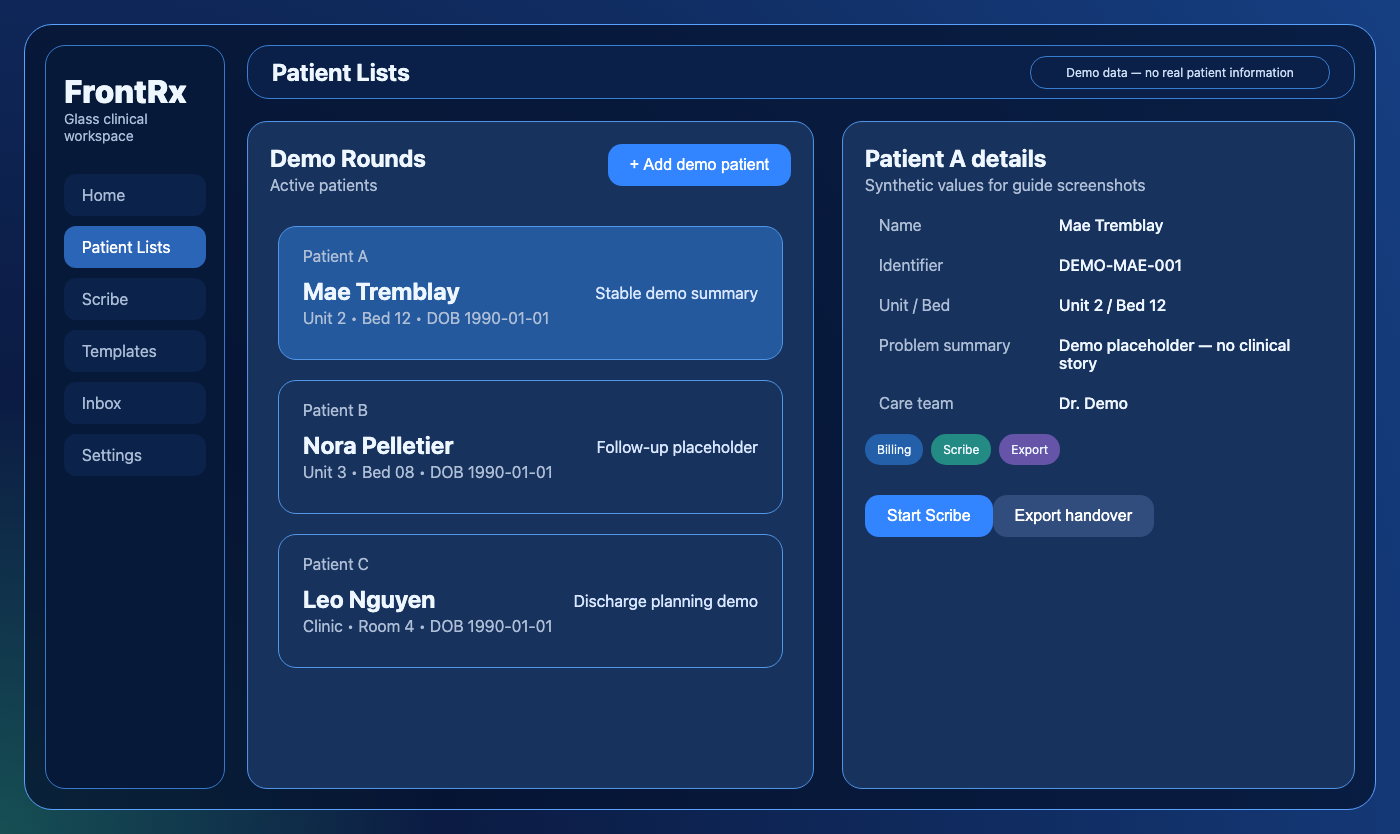
Synthetic demo patient list. The right panel shows demo patient details and the Billing, Scribe, and Export actions.
Share a list and invite for rounds
- Open the list you own and select Share patient list.
- Add a team member by selecting an existing FrontRx user, or invite someone by typing their email and selecting Invite.
- Track members and pending invitations in the dialog. As owner you can resend or cancel an invitation, or remove a member.
Transfer or move patients between lists
- To move one patient: open the patient, choose the transfer option, select the destination list, and confirm.
- To move several at once: hold Ctrl (Windows) or Cmd (Mac) and select multiple patient cards, then select Transfer on the toolbar that appears.
- Choose the destination list and confirm. You cannot transfer a patient to the list they are already in.
Re-round and export for handover
- To start a new round, open the Seen section and select Re-round to move seen patients back to Active.
- To hand over, select the export option and choose Export for handover (or Export with billing codes, Quebec only).
- Choose a format (PDF, RTF, or XLSX) and download the file.
Switch between Card view and List view with the layout icons; in List view you can drag patients to reorder them.
Use the search bar to filter patients by name across the Active, Seen, and archived sections.

Contact Us
Fill up the form and our team will get back to you within 24 hours


Your information is protected.
Made in Québec, Canada with ❤️
Various trademarks held by their respective owners.
Copyright 2025-2026. All rights reserved.
