
FrontRx
User Guide — Inbox and outbox
Document generated on July 9, 2026
Inbox and outbox
The inbox and outbox hold your clinical documents. The inbox shows documents you have received; the outbox shows documents you have drafted, created, or sent. You can open a document, view its PDF, transmit it by fax, and track delivery.
Steps
- Open Inbox and Outbox from the inbox icon in the top bar.
- Use the tabs to filter by type (Scribe Notes, Prescriptions, Lab Requisition) and search by name, patient, or date.
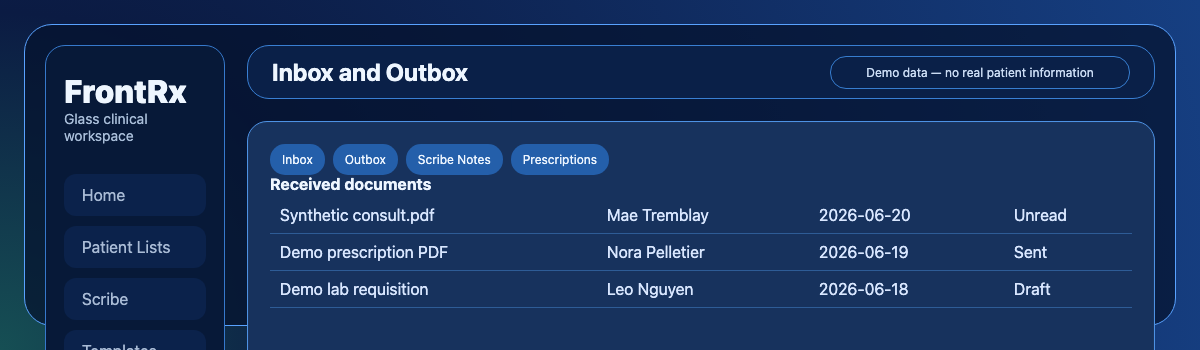
Synthetic demo Inbox and Outbox: switch tabs, filter by type, and open a document to view its PDF. - Select a document to view its details and PDF. A badge marks unread received documents.
Transmit a document and track status
- Open a drafted or created document and select Transmit.
- Select recipients from your saved contacts or add a custom recipient with a fax number. If you send on behalf of a physician, select the prescriber first.
- Select Transmit to send. Open the fax status to see delivery state for each recipient.

Contact Us
Fill up the form and our team will get back to you within 24 hours


Your information is protected.
Made in Québec, Canada with ❤️
Various trademarks held by their respective owners.
Copyright 2025-2026. All rights reserved.
